


3 ways to fix the Black Ops 6 DirectX error



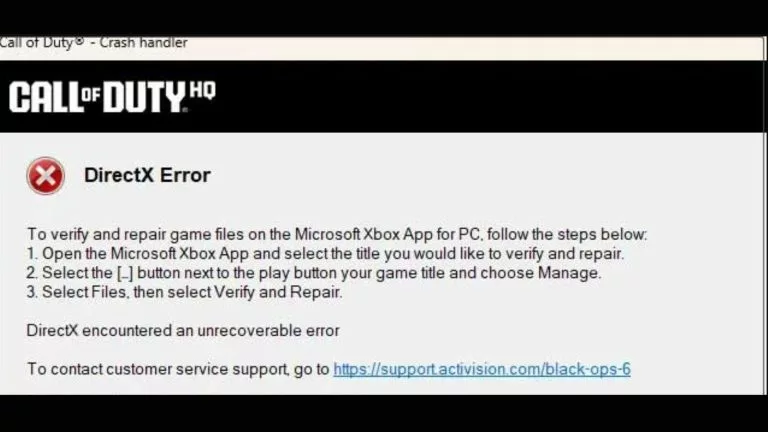
The DirectX error in Black Ops 6 is preventing players from launching the game, but there are a few ways to fix it.
Black Ops 6 enjoyed a big launch, earning praise from critics and fans alike. However, the launch has not been without issues, as players have reported difficulties starting the game. Random crashes were easily fixable, but a persistent DirectX error in Black Ops 6 has squeezed all the fun out of the game for some. Thankfully, it’s fixable.
No single fix has consistently worked for everyone, so try each solution, restarting the game after each attempt. If one doesn’t work, go through all the fixes listed in this guide to boot up Black Ops 6 without any hiccups.
How to fix the DirectX error in Black Ops 6
Here are three ways to fix the DirectX error plaguing players in Black Ops 6.
Update GPU and restart
If restarting the game solely doesn’t resolve the issue, make sure your graphic driver has the latest update. Nvidia users can do that by right-clicking on the graphic card icon and selecting Nvidia GeForce Experience. Open the app, go to the drivers tab, check for updates, and, if available, follow the prompts to download and install the newest driver.
AMD users check for the latest updates through Device Manager. Right-click the start menu, open Device Manager, expand display adapters, right-click the AMD device, select update driver, and search automatically for updated driver software.
Check for in-game updates as well and then restart the computer. Boot up Black Ops 6 to see if the issue is resolved.
Verify game files
The classic verification fix seems to work for the Black Ops 6 DirectX error as well. Here’s how players using Steam can do it.
- Open Steam and go to the game library.
- Right-click on Black Ops 6 and select properties
- In the properties window, go to the installed files tab
- Verify integrity of game files
Players who are on Xbox Game Pass should start the app and then right-click on Call of Duty. Select manage, then go to the files tab and click verify and repair to start the process. For Battle.net, click the settings icon next to the Black Ops 6 play button and choose scan and repair to check for any issues.
Verifying game files and then restarting the PC has worked for most reporters, but if the problem persists, consider limiting VRAM usage.
Limit VRAM usage
According to Treyarch, more VRAM helps with game performance only if your PC can handle it and you don’t have heavy applications running in the background. Before limiting VRAM usage, try to close all applications, including Discord and Google, from the taskbar and boot up Black Ops 6. If the game continues to crash while loading a map, try the following fix:
- Start Black Ops 6 and go to settings
- Select graphic settings from the list
- Click on the Quality option from the top menu
- Scroll down until you find the VRAM Scale Target
- Lower it to 60 or 80 to play Black Ops 6
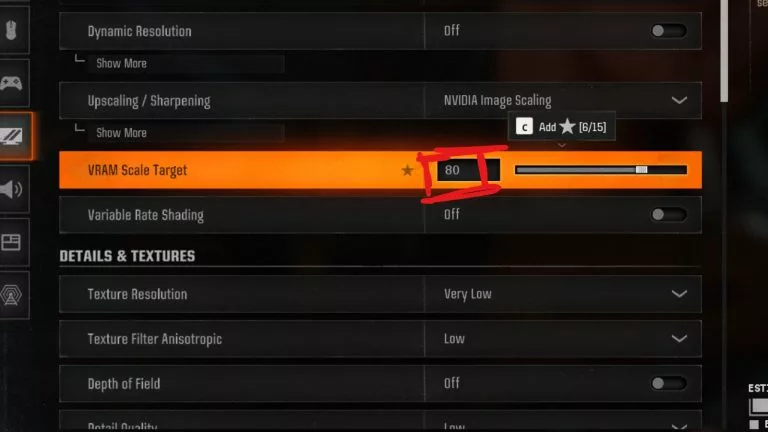
This final fix should resolve the DirectX error for good, but players may experience negligible visual issues.
The DirectX error hasn’t yet been acknowledged by Treyarch, but from fan reports, it typically results from the outdated graphic driver or VRAM leak. Sometimes, it can be caused by corrupt game files as well.



Related Articles
All Gaming News
 Gaming
 Esports
 Esports
 Gaming
 Fortnite
 Gaming
 Fortnite
 Esports
 Gaming
No comments yet










Leave a Comment
Join our community or access your account to post a comment.