


How to change the Indiana Jones language settings on Game Pass


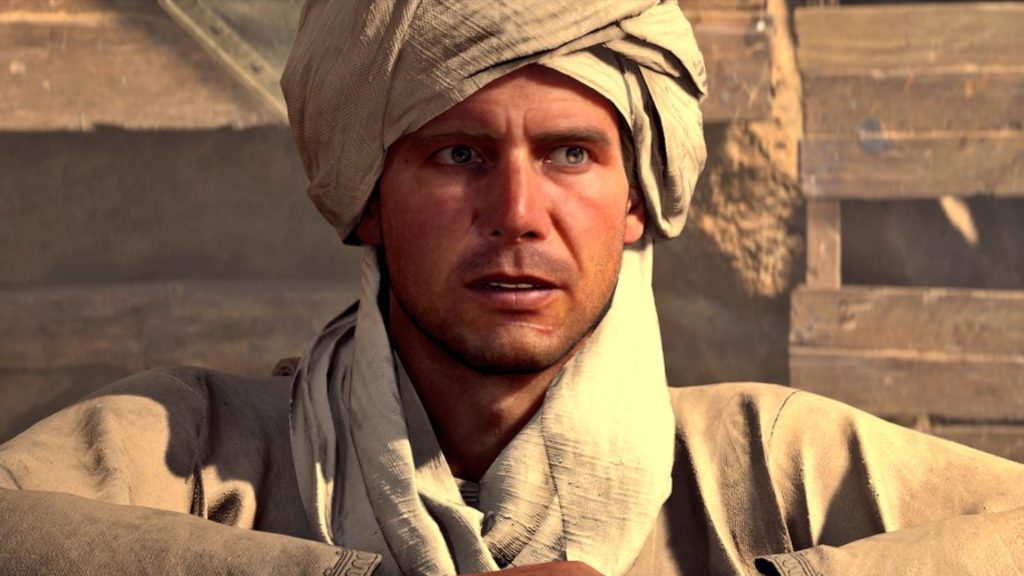
Fans playing Indiana Jones The Great Circle through Game Pass may struggle to change the language settings, but there’s an easy fix.
Bethesda and the various studios under its umbrella are in a weird place. With games like Starfield being unsuccessful among long-time fans, the announcement that MachineGames would work on a first-person Indiana Jones game garnered mixed reactions. Many doubted the studio would deliver a good Indiana Jones experience. Fortunately, the worries proved false.
Indiana Jones and the Great Circle is a hit among fans as it captures what makes the Indiana Jones series special. Troy Baker delivers an excellent performance, though some fans likely haven’t heard it yet. Many players playing the game through Game Pass launch the game to discover a language different from the one they want. Fortunately, there’s an easy fix for that.
How to change Indiana Jones and the Great Circle language
Players can change the Indiana Jones and the Great Circle language on Game Pass from the system settings.
As it’s connected directly to Windows, Microsoft’s various apps tend to use system-wide settings. This includes the user’s region, Microsoft Store account, and preferred language. Those who want to change the language of Indiana Jones and the Great Circle or any other Game Pass-available game must do so from the system’s settings. 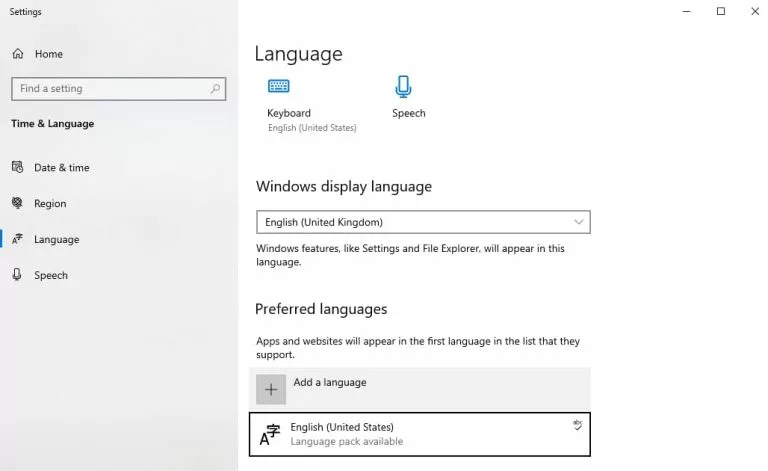
Below are the steps Game Pass players must follow to change their language in Indiana Jones and the Great Circle:
- Click Windows + S on your keyboard to bring up the search bar
- Type “language” and click on the language settings option
- Click on the apps and websites option
- Select and install the required language under the preferred language heading
- Once installed, interact with the preferred language and move it up to give it a higher priority
Now, all players must do is restart the Xbox and Microsoft Store app if it’s open. Launch Indiana Jones and the Great Circle through Game Pass. It should be in the preferred language after following the steps above. Players may have to download the new audio and text files, though. These changes will affect the audio and text language.
How to only change Indiana Jones and the Great Circle audio language
Game Pass players can change Indiana Jones and the Great Circle’s audio language while keeping the text language the same by changing the audio files.
Players may want to change Indiana Jones and the Great Circle’s audio language while ensuring the text language differs. This could be because they want to read the subtitles in their native language or another reason. 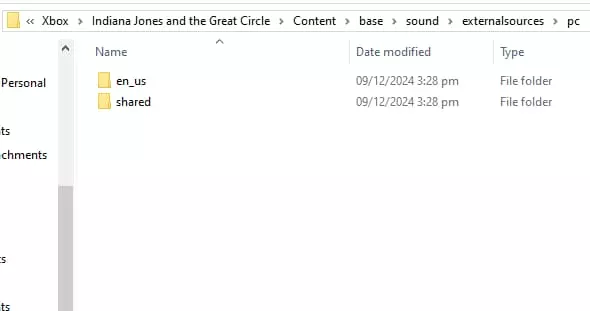
Below are the steps to only change the Indiana Jones and the Great Circle audio language when playing through Game Pass.
- Change the system language as mentioned above
- Start Indiana Jones and the Great Circle through Game Pass
- Select yes when given the prompt to download the new language’s audio and text files files
- Now, close the game and locate where Indiana Jones and the Great Circle is installed on the system
- After locating the folder with Indiana Jones and the Great Circle, navigate the following folders: Indiana Jones and the Great CircleContentbasesoundexternalsourcespc
- Copy the audio folder here somewhere else. For the English language, the folder will be named “en_en” or “en_us”
- Change the system’s settings to the desired text language
- Go to the Xbox app and click on Indiana Jones and the Great Circle to open its dedicated page
- Click on the three dots next to “see in store” before interacting with manage to repair the files from here. This will reinstall any removed files
- Finally, go back to where the audio folder is installed. Remove the contents of the newly installed audio folder and replace it with those of the desired language
These steps will ensure Game Pass users can have the audio and text language settings they want in Indiana Jones and the Great Circle. This method will have to do for players until MachineGames releases a fix in the future.





Related Articles
All Gaming News
 Fortnite
 CS2
CS2
 Gaming
 Esports
 Esports
 Gaming
 Fortnite
 Gaming
 Fortnite
No comments yet




 Spain. LaLiga. EA FC 25. (2x4 min)


 Overwatch World Cup 2026


 Brasileirao Serie A. EA FC 25. (2x4 min)


 World Cup. EA FC 25. (2x4 min)


 3v3 League. EA FC25 (2x3 min)






Leave a Comment
Join our community or access your account to post a comment.