


Here’s how to save Twitch streams on both mobile and desktop



When you stream on a new account on Twitch, your streams may vanish as soon as you click to “end stream.” But it’s possible for creators to their save streams on Twitch by following a few simple steps.
Some of the most helpful settings on Twitch are disabled by default. For example, the new Twitch rewind feature is off by default, as is the option to store past broadcasts. The streaming platform enables creators to toggle these settings on or off from the streaming dashboard, providing more control over how fans interact with their streams and what happens to those streams. It’s generally a good idea to keep past streams up and saved after you go offline, especially for newer creators looking to give potential followers a chance to discover their past content even when they’re not live.
Thankfully, it’s a pretty simple to save Twitch streams once you’re done broadcasting.
How to save Twitch streams
To save streams on Twitch, you just need to follow a few steps that we’ll lay out below.
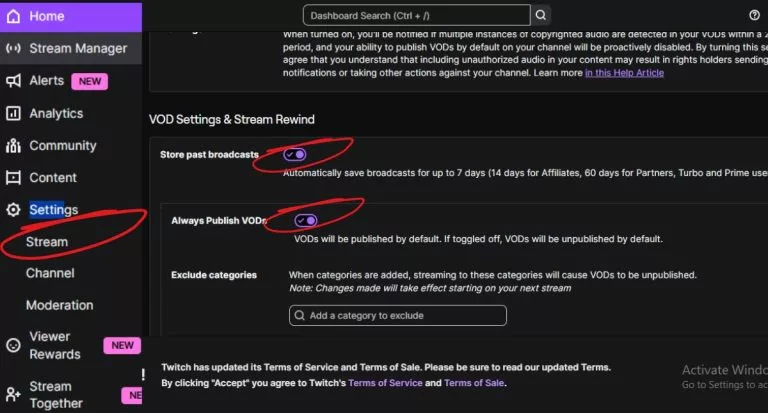
How to save Twitch streams. Image credit: Twitch
- Click your profile icon → select your creator dashboard.
- Head to the settings menu → choose “stream”
- Under VOD settings, toggle on “store past broadcasts”
Once you enable this setting, all streams will be published as VODs that you can later use to create highlights and reels. Take note that VODs won’t automatically publish if you’ve disabled the “always publish VODs” option under the “store past broadcasts” toggle. In that case, you’ll need to manually review and publish them from your dashboard before they appear on your channel.
Some streamers prefer to save their Twitch streams for personal use, so that option helps keep VODs private while still allowing them to analyze their content, track performance, or repurpose videos for clips and other users later.
Another more straightforward approach is to simply download a Twitch stream manually. After ending a stream, go to “video producer,” click the three dots beside your VOD, and choose “download” if you want to procure a local copy. Keep in mind that Twitch only keeps VODs for seven days by default. This amount of time is extended to 60 days for Twitch partners, Turbo users, and Twitch affiliates, so be sure to download your VODs before they’re removed from the platform.
How to save your Twitch streams on mobile
Saving Twitch streams on mobile is a similar process to when it’s carried out on PC, but instead of the “stream” setting, the required option is available under “channel & videos.” Here’s how to do it:
- Open the Twitch app and log into your account
- Click on the profile icon in the top left corner
- Click on the gear icon in the drop-down menu
- Scroll and select “channel & videos”
- Look for “store past broadcasts” and switch it on
To download a stream on Twitch mobile, use a web browser and sign in at Twitch.tv. Go to creator dashboard → content → video producer. Find the stream VOD, click the three dots, and select “download” to save a local copy.



Related Articles
All Streaming News Streaming
 Apex Legends
 Streaming
 Streaming
 Streaming
 Streaming
 Streaming
 Streaming
 Streaming
No comments yet











 3v3 League. EA FC25 (2x3 min)


 Italy. Seria A. EA FC 25. (2x4 min)


 World Cup. EA FC 25. (2x4 min)


 Germany. Bundesliga. EA FC 25. (2x4 min)


 Spain. LaLiga. EA FC 25. (2x4 min)






Leave a Comment
Join our community or access your account to post a comment.