


How to stream on Kick from PS5



Streaming has emerged as one of the fastest-growing professions in the digital space. While there are multiple options available, among them Kick has recently received a good number of eyeballs.
One of the main reasons is its streamer-friendly revenue split, as the platform only keeps five percent of subscriptions and also pays for views.
Furthermore, the barrier to monetization is relatively low. Creators can unlock affiliate earnings with just 75 followers and five hours of watch time.
So, in case you own a console, you might be wondering how to stream on Kick from PS5. The process is quite simple, and we have listed the steps in detail.
The first process is for new streamers who don’t have a standalone desktop. The second is for professionals who have a decent PC on their end.
Steps to stream on Kick from PS5

Image credit: Sony
Step 1: Launch a game on your PS5
The first to do is to select a game that you want to stream. It can be anything, from FPS, sports titles to action-adventure games, or a game that is currently dominating the Kick market. The game must be loaded on your PS5. Once it’s launched, hit the ‘create’ button on the controller.
Step 2: Sign into your Twitch account
You will have to locate the ‘Broadcast’ option on your screen and click on it. Once you follow the prompts and log in to your Twitch account, you will find the option to ‘Go Live’.
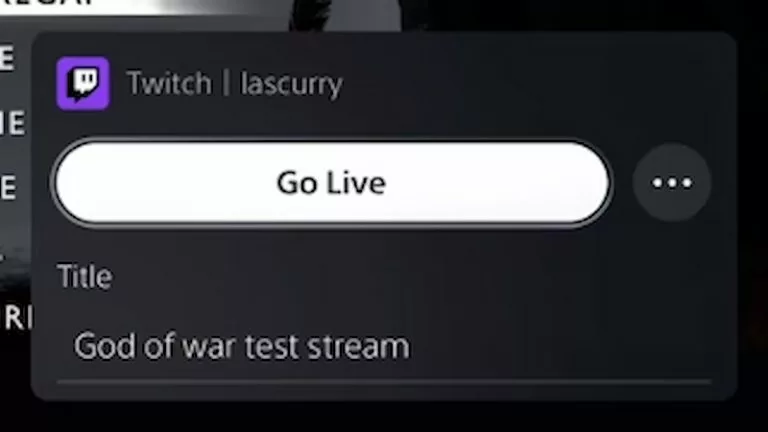
Image credit: Sony
Providing a stream title is mandatory before going live since Kick will take it from Twitch itself. Once you have added the title, click on the three dots beside ‘Go Live.’
Step 3: Adjust broadcast settings
You will have to navigate to the ‘Broadcast Options’ and ensure important features like ‘Display Camera, Chat, Activity’ and ‘Party Audio’ are enabled. To get the highest quality stream, you will have to set the video quality to 1920×1080 and 60 FPS. We also have a dedicated guide on the best Kick streaming settings that explains this in detail.
Step 4: Select the best Aircast Plan
This is the most important part of getting your stream to Kick. PS5 does not have native Kick integration, while it natively supports Twitch and YouTube broadcasting. So, services like Aircast simply relay your Twitch stream to Kick using your Kick stream key.
While the services of the website are not free, it’s way less expensive than having to purchase a PC or even a capture card. So it’s the most convenient way if you are just starting your journey as a streamer.
In order to do this, you will require a separate device (smartphone, tablet, or laptop) and visit the Aircast.app. You can purchase a plan that suits your budget. It also has a 14-day free trial option.
Our recommendation for you would be to use the ‘Streamer plan’ since it will allow you to stream on multiple platforms at once. This means whenever you stream on Twitch, it will be in Kick too. Some of the top Kick streamers are already following this practice.
Step 5: Put the Kick Stream key to Aircast
Once you have purchased a plan, you will have to give permission to Aircast to access your Twitch account. You need to authorize the request and then select Kick under ‘Stream Output’.
Then, you will have to revisit your Kick account and navigate to the profile section under ‘Settings’. Here you will get the stream key, which you need to copy and paste into Aircast to begin your stream.
Step 6: Start streaming
Once your Twitch and Kick accounts are connected via Aircast, you will have to press the ‘Go Live’ option on PS5. The stream will then start on both Twitch and Kick at the same time.
Once you have connected your Kick account to Aircast, future streams become much easier. You only need to go live on Twitch from your PS5, and the stream will automatically be relayed to Kick.
Streaming on Kick from PS5 using a PC
If you have a running PC, streaming on Kick via PS5 gets even easier. You need to have PS5 remote play installed on your device. Once that is done, you can use Streamlabs Desktop to stream on Kick.
- Step 1: Install the Free Streamlabs Desktop application on your device and launch it following all the prompts.
- Step 2: Create or log in to your Kick account.
- Step 3: Select the ‘Stream’ Tab from Streamlab settings and click on the ‘Connect’ button next to Kick. You will then have to authenticate with credentials.
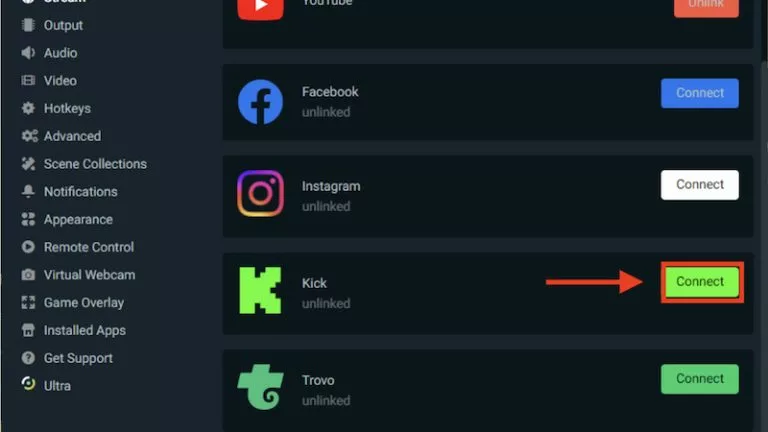
Image credit: Streamlabs
- Step 4: Press ‘Go Live’ to start streaming on Kick.
Just make sure you have set proper stream titles manually before going live. Lastly, before you commit to Kick as a full-time streamer, make sure you know how well Kick streaming really pays so that you can set your expectations straight.




Related Articles
All Gaming News
 Gaming
 Esports
 Esports
 Gaming
 Fortnite
 Fortnite
 Esports
 Gaming
 Gaming
No comments yet











Leave a Comment
Join our community or access your account to post a comment.