


Marvel Rivals: How to fix stuck at 99% error


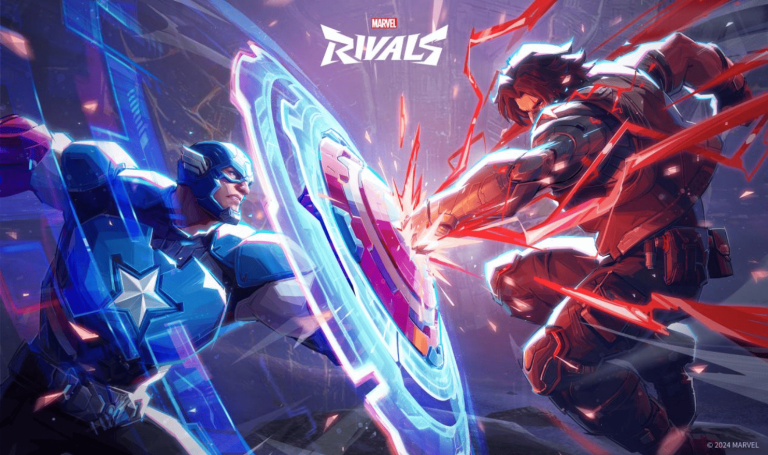
Numerous players can’t get into Marvel Rivals matches because the loading screen gets stuck at 99%, though there are some potential methods to fix it.
Marvel Rivals may have various issues, from FPS drops to frequent crashes, but some players can’t play the game at all. Specifically, there’s an issue that causes the title to stop loading after it reaches 99% when joining a match or ending the tutorial. This frustrating issue can cause players to get unfair penalties and cooldowns for something out of their control.
Although there isn’t an official statement about this, various players have shared solutions. Most believe the problem depends on where the game is installed. Here’s how to fix the Marvel Rivals stuck at 99% error.
What to do if Marvel Rivals stops loading at 99%
Players have reported that installing the game on a different drive and verifying the game files can resolve the 99% loading issue in Marvel Rivals.
There are usually three primary reasons for Marvel Rivals’ loading getting stuck on 99%. The game files may be corrupt, the game might not be installed on a solid-state drive, or they’re downloaded to a different drive. There are different methods for fixing these issues, with some being buried in the Steam menus.
How to verify game files for Marvel Rivals
- Open Steam and go to the Library section
- Find Marvel Rivals from the list, right-click, and select Properties
- Click the Installed Files tab
- Select “Verify Integrity of game files
- Let Steam verify the game files
- If any file is corrupt, Steam will automatically start downloading it
If Steam finds corrupt or missing files, it will start patching the game. If the problem persists, players may have to move the game to an SSD if they have it on an HDD. They can also move the game to the C: drive since players report moving it there solved the issue.

Steps to move Marvel Rivals game files to a different drive
Steam can sometimes have issues if games are installed on different drives. Thankfully, Valve makes it easy to fix this issue. Players who have checked the file integrity of Marvel Rivals but still get the 99% loading issue may be able to remedy this by moving the files to a different drive:
- Open Steam and click on the Steam button that’s on the top-left corner
- Click on Settings and then go to the Storage tab that’s on the left side
- From the dropdown menu, select the drive where Marvel Rivals is installed
- Select Marvel Rivals from the list below and click on Move
- Click on the C: drive or an SSD from the new dropdown and press Move
- Let Steam move the game there
If these solutions don’t work and the loading still stops at 99%, the only option is to wait for a patch. NetEase may release a patch to fix the issue. Players who are desperate to play but don’t have a solid-state drive may want to hold off on buying one until seeing if an update remedies this issue.





Related Articles
All Gaming News
 Gaming
 Esports
 Esports
 Gaming
 Fortnite
 Gaming
 Fortnite
 Esports
 Gaming
No comments yet










Leave a Comment
Join our community or access your account to post a comment.