


Three easy ways to show FPS in CS2


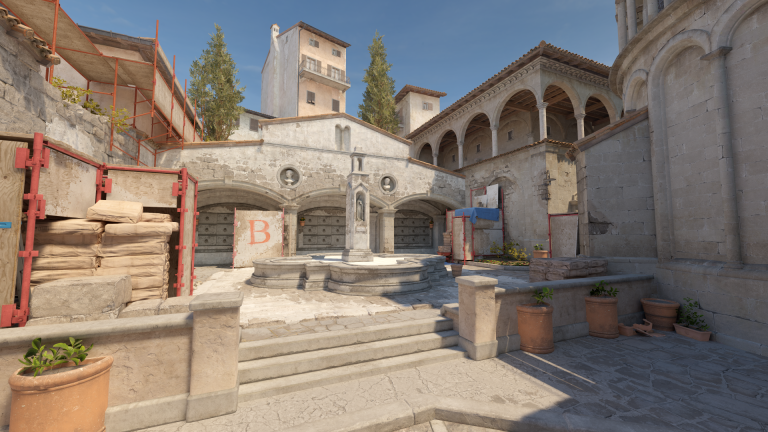
FPS is everything in Counter-Strike 2, and luckily for CS2 fans, there are three different ways to show it live during a match.
Frames per second, or FPS, measures how many frames your computer can render every second while running the game. Throttling, background applications, and several other issues can often cause FPS drop and lag in CS2 that may hinder gameplay. Keeping a close on the issue is the first step to solving it. More FPS means smoother gameplay, making it that much easier to snap to enemy heads.
It’s crucial to keep track of your FPS while playing CS2, and there are three different ways to show it.
How to show FPS in CS2
There are three different ways to show FPS in CS2 involving the Steam overlay, in-game settings, and the Source 2 console. Here are all three methods explained along with their pros and cons.
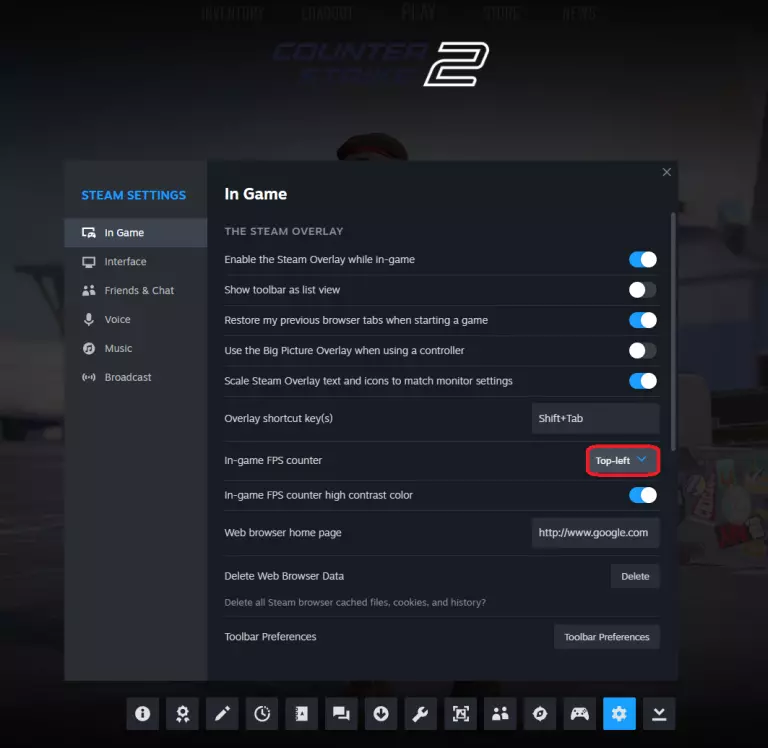
First, here’s how to show FPS in CS2 using the Steam overlay.
- Start CS2 and then press Shift+Tab to open the Steam overlay
- Go to the “In-game” option
- Click on the drop-down next to “In-game FPS counter”
- Select where you want the metric to appear on the screen
- We recommend having it at the top right corner
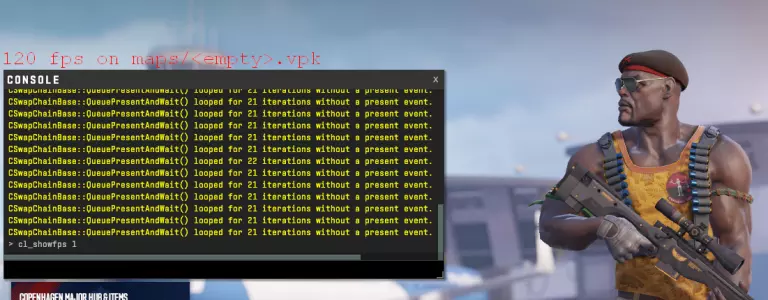
Alternatively, you can use the console command “cl_showfps 1” to display the FPS graph. However, this graph can be slightly distracting as it appears in the middle of the screen in red fonts. To disable it, type “cl_showfps 1” once you’re done checking the FPS.
While both of these methods work, here’s the one we recommend using due to the detailed information available within the in-game UI and distraction-free font.
- Open CS2 and go to settings
- Click on Game settings from the sub-menu and select Telemetry
- Click on the drop-down next to “Show frame time and FPS” and set it to “Always”
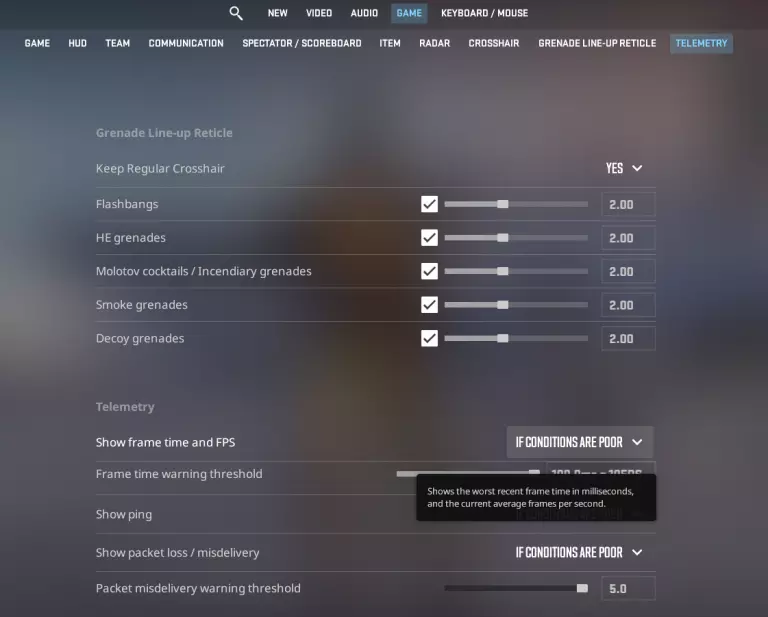
To keep the screen clean at most times, instead of selecting Always, click on When conditions are poor. This means the metrics will only appear when you need to be informed about any unusual spikes or drops. Players may do the same for ping and packet loss to get detailed stats throughout the game.





Related Articles
All CS2 News CS2
CS2 CS2
CS2 CS2
CS2 CS2
CS2 CS2
CS2 CS2
CS2 CS2
CS2 CS2
CS2 CS2
CS2 CS2
CS2No comments yet







Leave a Comment
Join our community or access your account to post a comment.