


How to uninstall League of Legends on Windows and Mac



Do you want to uninstall League of Legends? Are you fed up with the LoL ranked system, or did you roll the wrong augments in ARAM: Mayhem? Uninstalling League of Legends on Windows or Mac is actually simple. If you can’t uninstall LoL, you’ll find all the steps in our guide.
Method 1: How to uninstall League of Legends on Windows using the Settings
Step 1: Close League of Legends
Press the cross on the top right of the app, then select Exit. If the game refuses to close or if your computer later tells you that the program is still running, you can force it to close using the task manager.
For that, press Ctrl + Shift + Escape ( Ctrl + Alt + Delete ) and sort the processes by name. Then, look for all instances of League of Legends and click End task after selecting each of them.

LoL in the task manager, the first step of how to uninstall League of Legends
Step 2: Close the Riot client
Find the Riot client icon in your system tray (on the right of the taskbar). You may need to click on the arrow to expand the tray. Double-click on the icon to open the Riot client. Then, press the cross on the top-right to close it, or simply right-click the Riot client in the taskbar and exit it from there.
If your computer tells you that the program is still running, you can force close the Riot client using the task manager the same way as the League client.

How to uninstall League of Legends, without the Riot client
Step 3: Open Installed Apps / Apps & Features
Open the Windows search bar. In it, type “Add or remove programs”. Click on the top-most option.
Alternatively, you can instead open the Settings app.
- Windows 10: There, click on “Apps”. This will get you to the same Apps & Features window.
- Windows 11: Click on “Apps” in the left-hand column, then “Installed Apps”.
Step 4: Uninstall League of Legends
Sort the list by name and locate League of Legends. Click on it, then press Uninstall. Press Uninstall a second time on the pop-up. The game is now gone!
(In Windows 11, you’ll need to click on the … menu next to the app’s name.)
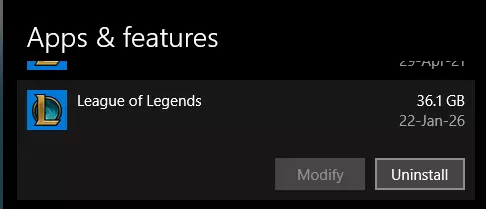
How to uninstall League of Legends: Windows settings
Just in case, here’s how to download LoL again.
Method 2: How to uninstall League of Legends on Windows using the Control Panel
Step 1: Close League of Legends
Press the cross on the top right of the app, then select Exit. If the game refuses to close or if your computer later tells you that the program is still running, you can force it to close using the task manager.
For that, press Ctrl + Shift + Escape and sort the processes by name. Then, look for all instances of League of Legends and click End task after selecting each of them.
Step 2: Close the Riot client
Find the Riot client icon in your system tray (on the right of the taskbar). You may need to click on the arrow to expand the tray. Double-click on the icon to open the Riot client. Then, press the cross on the top-right to close it.
If your computer tells you that the program is still running, you can force close the Riot client using the task manager the same way as the League client.
Step 3: Open the Control Panel
Open the Windows search bar. In it, type “Control Panel”. Click on the top-most option.
Step 4: Open Programs & Features
In the Control Panel:
- Windows 10: Click “Programs & Features”.
- Windows 11: Click “Uninstall a program” under Programs.
Step 5: Uninstall League of Legends
Sort the list by name and locate League of Legends. Double-click it, then press Yes when prompted. Congratulations, you’ve uninstalled the game!

How to uninstall League of Legends: Windows Control Panel
- Read also: The LoL Player Count in 2026
Method 3: How to uninstall LoL on Mac
Step 1: Close League of Legends
Press the cross on the top right of the app, then select Exit. If the game refuses to close, bring up the Activity Monitor with Finder > Applications > Utilities. Then, look for all instances of League of Legends and click End task after selecting each of them.
Step 2: Close the Riot client
Find the Riot client icon in your system tray. You may need to click on the arrow to expand the tray. Double-click on the icon to open the Riot client. Then, press the cross on the top-right to close it.
If your computer tells you that the program is still running, you can force close the Riot client using the Activity Monitor the same way as the League client.
Step 3: Open the Applications
In the Finder, open Applications.
Step 4: Bin League of Legends
Locate League of Legends in the Applications. Then, select it and drag it to the Trash bin at the bottom of the screen. This will uninstall League of Legends!
Featured Image Source: Riot Games




Related Articles
All LoL News

 Esports
 LoL
LoL LoL
LoL LoL
LoL LoL
LoL LoL
LoL Esports
 LoL
LoLNo comments yet







Leave a Comment
Join our community or access your account to post a comment.