


LoL Pro settings guide: How to play League like the pros


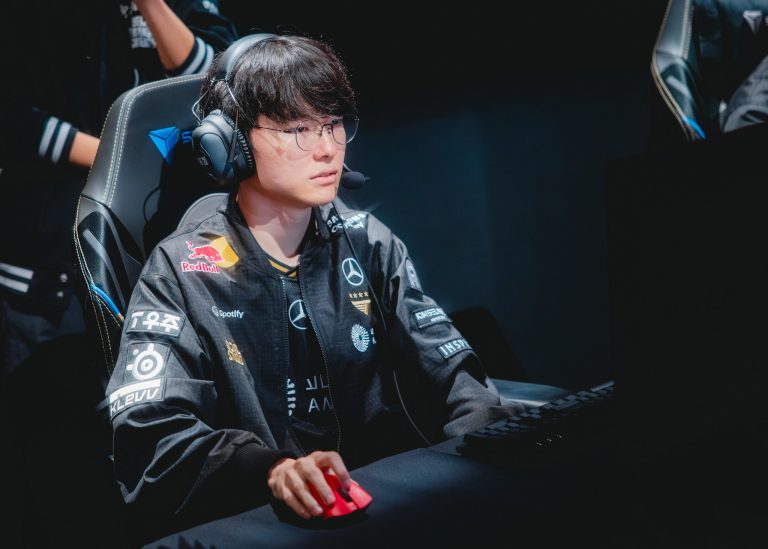
Key bindings, interface, camera, resolution, every setting in League of Legends can affect your gameplay. With this article, find what the best settings are to play League of Legends like the pro players, and why they’ll help you.
Basic abilities
First things first, the basic abilities. Note that we will ignore the WASD (keyboard) setting for this article, as it is currently only an option in non-draft game modes. Read up on WASD and whether it is better than point and click here.
For the basic abilities, almost nobody deviates from the default setup. Q, W, E, and R for the abilities, D and F for the Summoner spells, and numbers 1 to 7 for the items, with 4 as the trinket’s hotkey.
People deviate from this when they got used to another setup. That case excepted, it’s the best layout as it allows for everything else to be around these keys.
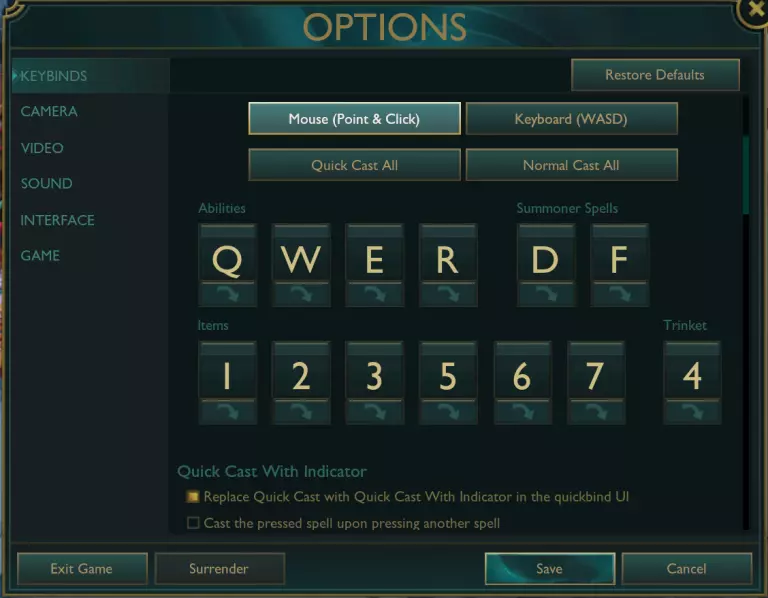
LoL’s default ability bindings
Normal Cast or Quick Cast (Smart Cast)
Normal cast means that you press the button to activate the spell and get its range indicator, then press the left mouse button to cast the spell.
Quick cast, also known as smart cast, means that you press the button and the spell immediately fires towards your cursor.
The third option is on this little checkbox at the bottom of this image: Quick cast with indicator. This one means that you press the button to activate the spell and get its range indicator, and release the button to cast the spell.
Lacking a name and being hidden there, it’s less known than the other two, but is the best of both worlds.
You want to avoid normal cast. Normal cast is tedious, it will slow down your spell usage. Quick cast has no such issue, but prevents you from seeing your spell’s range. That might not be an issue for some, but if you’re a newer player or are discovering a new champion, it’s a problem.
Quick cast with indicator is as fast as standard quick cast if you only tap the key. At the same time, you can still hold the button for more information.
Warning: Do not use full quick cast (without indicator) for Rumble’s R or Viktor’s E.
Other key bindings
As for the other bindings, there’s no need to overthink it. The default ones are good, and if you change them, it’s because you have a reason to do so and your alternative works for you.
There are some important commands if you’ll want to play like best LoL pro players, though:
| Setting | Recommended binding(s) | Effect |
|---|---|---|
| Player Attack Move Click | Q or MB3 (middle mouse button) | Makes you move to the area you clicked on. If there’s an enemy around where you clicked, attacks the enemy instead. |
| Center Camera On Champion | Spacebar | Snaps the camera back to you |
| Select Ally | F1 through F4 | Puts the camera onto the corresponding ally |
Note: Unbind the “Hide HUD” command. By default on L, hiding the HUD removes all HUD elements from the screen. It’s a button that you only press accidentally and is never helpful.
Read also:
- Faker LoL settings: How to play like the GOAT
- Best LoL streamers to watch
- League of Legends champions tier list (current meta)
Camera settings: Unlock the camera!
The locked camera is useful to always know where you are, and to not get lost in teamfights. As a beginner, it’s a good setting to keep this aspect of the game comfortable while focusing on the rest. However, once you start finding your footing, unlock the camera as soon as possible.
The free camera gives you more freedom to look around and ahead of you. It also helps you get the habit of looking around the map. If you need to focus on your character again, press space to center the camera around you!
Video settings
| Option | League of Legends pro settings | League of legends settings for best performance | Notes |
|---|---|---|---|
| Resolution | Native monitor resolution | Native monitor resolution | |
| Window Mode | Borderless or Windowed | Full Screen | Windowed mode is more of a matter of habit. Borderless lets you alt-tab more comfortably over full screen. |
| Color blind mode | Personal preference | Personal preference | This mostly changes your health bar from green to yellow |
| Hide eye candy | Checked | Checked | |
| Enable screen shake | Unchecked | Unchecked | |
| Graphics | High for most pros, low for others | Low | |
| Shadows | On for most pros | Off | |
| Frame Rate Cap | 144 FPS | 144 FPS | Cap the FPS at your monitor’s refresh rate! |
| Anti-Aliasing | Checked for most pros | Unchecked | |
| Wait for Vertical Sync | Unchecked | Unchecked |
Many of the video settings are about finding the correct match between visual quality and performances. The priority is to select the League of Legends settings for best performance. However, so long as there is no performance loss, the higher the visuals, the better. League can quickly become jarring on low quality and without shadows, and a game should be enjoyed, competitive or not. Even the League of Legends pro settings put the graphics higher whenever possible.
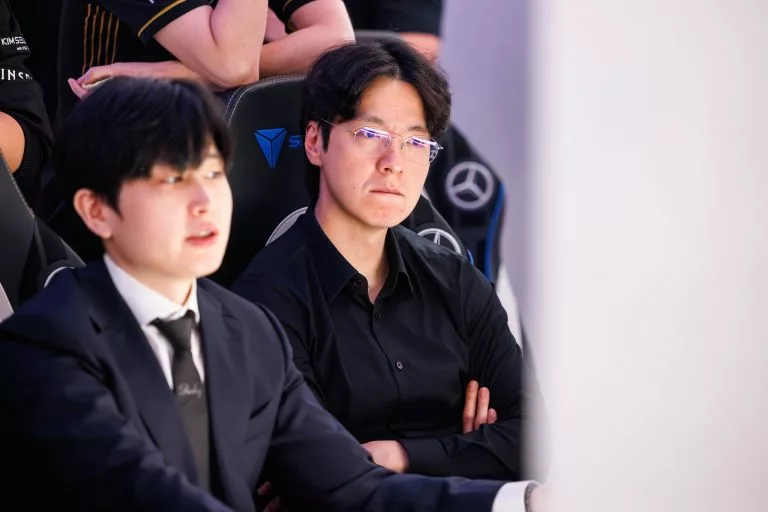
T1’s coaching staff, totally discussing LoL settings (Image Source: Yicun Liu / Riot Games)
League of Legends pro settings for sound
Everything in the sound category is about preferences. Sounds need to be on, though: people respond quicker by having audio cues as well. Background music is also up to personal preference. Playing League of Legends with music can help or break your focus – listen to how your own brain functions!
Interface settings
These are the League of Legends pro settings for the interface. If a category isn’t in this table, it’s because it’s irrelevant or down to preferences!
| Option | League of Legends pro settings |
|---|---|
| HUD Scale | Low |
| Chat Scale | Low |
| Minimap Scale | High |
| Show Health Bars | Checked |
| Show Names Above Healthbar | Champion Name |
| Champion highlight on camera center | Checked |
| Show Off-Screen Pings | On |
| Always show extended Tooltip info | Checked |
| Show Target Frame on attack | Checked |
| Enable Line Missile display | Checked |
| Show Attack Range | Checked |
| Disable HUD spell click | Unchecked |
| Show Spell costs | Checked |
| Show Neutral Camps | Checked |
| Allow Minimap movement | Checked |
| Enable All Minimap Timers | Checked |
| Show Summoner names | Unchecked |
| Combat Text | All checked |
Chat visibility
Many players lose their focus because of the chat, and not for good reasons. Some even lose their composure. If that is your case, even sometimes, set the chat to team chat or even party chat. Countless games are lost by players who let the chat get to their head.
Game settings
The one option that matters in the game settings is the auto attack. If it’s on, your champion will attack enemy units in range if you’re not already attacking or moving. Having auto-attack on can cause problems, attacking a minion you didn’t mean to. If you are rooted under the enemy tower, you can even die when your champion automatically starts attacking the opponent.
However, having auto-attack on lets you know if you’re sitting in a warded bush. Auto-attack is only enabled if the enemies have vision on you. So with AA on, if you’re in a bush and your champion starts attacking, you know that you’re on vision. This doesn’t work with auto-attack off.
You now have all the settings to play League of Legends like the pros – it’s time to climb!
Featured Image Source: Colin Young-Wolff / Riot Games




Related Articles
All LoL News LoL
LoL LoL
LoL LoL
LoL LoL
LoL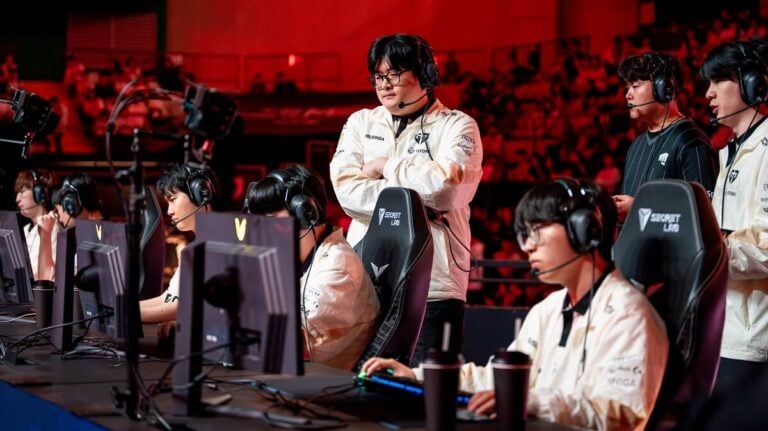 LoL
LoL LoL
LoL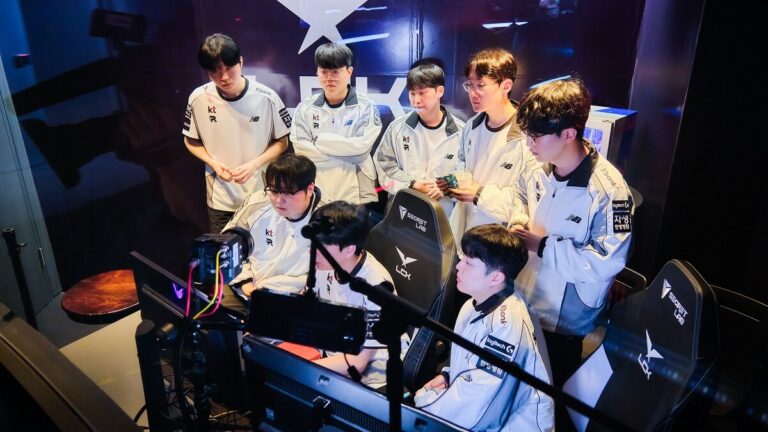 LoL
LoL LoL
LoL LoL
LoL LoL
LoLNo comments yet










Leave a Comment
Join our community or access your account to post a comment.