


Try these CS2 video settings for max FPS


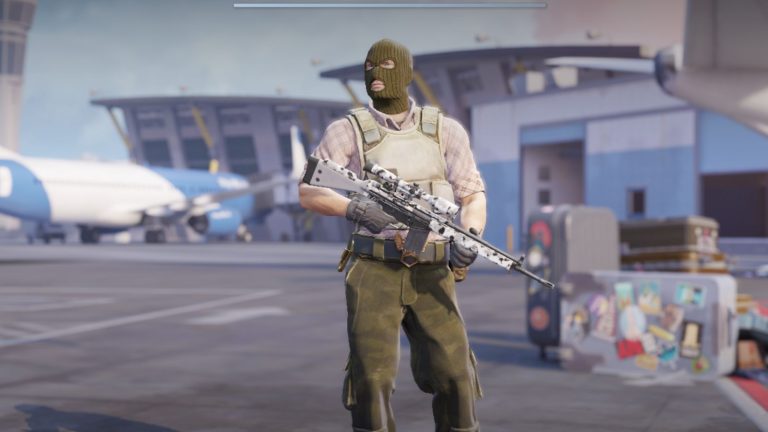
Poor graphic or video settings are often one of the main culprits behind FPS drops in Counter-Strike 2. These CS2 video settings may do the trick and pump up the game’s performance.
In a sea of visually stunning shooters, CS2 stands out as a game where players willingly trade breathtaking visuals for better performance. For the average CS2 player, sacrificing eye candy for smoother performance is a no-brainer—if it means better gameplay, pixels are always the preferred choice. The developers also encourage this with settings such as CS2 damage prediction, which gives the player instant feedback on hits.
For many players, it’s also logical since graphic settings are one of the top reasons players have high FPS in CS2. Lowering settings like Shadow Quality to low can improve FPS on mid-range systems, but keeping Texture Detail at medium is essential to avoid compromising gameplay clarity. Though it makes the game look odd for some, the performance boost is well worth it for many players. Even then, there are still multiple other settings the players may have to fiddle around with. Those still confused may consider using the following CS2 video settings to get max FPS.
These are the best CS2 video settings
The best CS2 video settings vary from rig to rig. For instance, players running a GTX 1650 might be fine with Texture Detail on medium, while those flexing a 4090 can still crank most settings too low to squeeze every drop of FPS, ensuring buttery-smooth gameplay. It’s also crucial to keep video drivers and Windows up-to-date. No matter what settings are tweaked, they may not be visible until these necessary updates have been installed. Once that’s handled, players are ready to test out their CS2 settings.
Here are some recommended CS2 video settings:
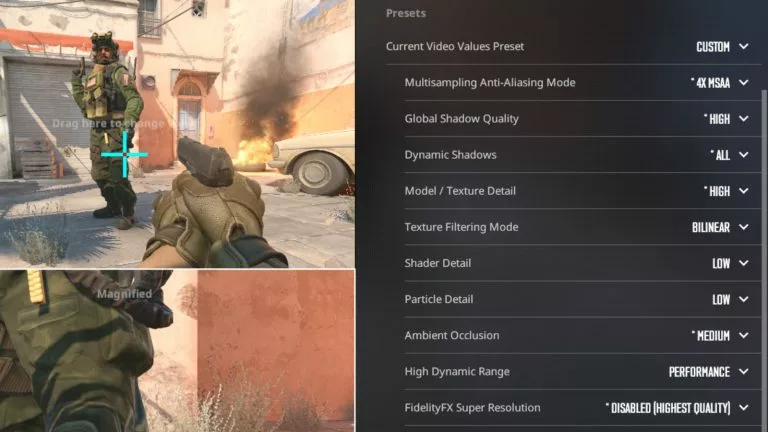
- Boost Player Contrast: Enabled
- V-Synch: Disabled
- Anti-Aliasing: 4xMSAA
- Global Shadow Quality: Medium
- Model / Texture Detail: Low
- Texture Filtering Mode: Bilinear
- Shader Detail: Low
- Particle Detail: Low
- Ambient Occlusion: Disabled
- High Dynamic Range: Performance
- FidelityFX Super Resolution: Disabled
- NVIDIA Reflex Low Latency: On
Some settings can be adjusted between high and medium without heavily impacting FPS. For instance, setting Shader Detail to medium won’t drastically affect performance but will enhance visual clarity in the game. High Global Shadow Quality provides detailed shadows, which can be useful for spotting enemies in dynamic lighting, though it may strain lower-end GPUs. Disabling Ambient Occlusion can free up resources, helping to maintain stable FPS during intense duels. Third-party settings such as NVIDIA Reflex Low Latency also shorten system latency timings significantly, making inputs register much faster.
Video resolution has zero to no impact on FPS, but for a better experience, playing on 1280×960 with a 4:3 aspect ratio on stretched scaling is recommended. This is the resolution most pro players use, but native is fine as well. It’s less popular in higher ranks for those looking to fit in the crowd. Ultimately, CS2 is a game where even the smallest milliseconds can mean the difference between a win or a loss. Taking these steps should help players get closer to their competitive peak in CS2.



Related Articles
All CS2 News CS2
CS2 CS2
CS2 CS2
CS2 CS2
CS2 CS2
CS2 CS2
CS2 CS2
CS2 CS2
CS2 CS2
CS2 CS2
CS2No comments yet










Leave a Comment
Join our community or access your account to post a comment.