


How to fix Valorant’s stuck on loading screen issue in 2026



Many players report they can’t play VALORANT because it frequently gets stuck on the loading screen, though there are some ways to fix the issue.
Although VALORANT runs smoothly for most players, even those on lower-end hardware, the game has its fair share of potential issues. The infinite loading screen is one of the most frequent problems numerous players experience, even in 2026, 6 years after the launch of the game.
When this happens, players get stuck on the game’s loading screen after selecting an agent or the Riot Game logo screen after launching the game. The only way to back out in both cases is to close the game’s application. Players get frustrated at best and experience a legitimate penalty through no fault of their own at worst.
Luckily for players, there are some basic troubleshooting steps they can take to fix the issue.
How do I stop VALORANT from getting stuck on the loading screen in 2026?
Changing the game’s settings or troubleshooting installed files could prevent VALORANT from getting stuck on the loading screen. However, various potential suspects could cause this problem. These include Vanguard, corrupted or missing installed files, and internet issues.
Check the installed VALORANT files and required permissions
The installed VALORANT files may be corrupted, requiring players to fix them. Installed files usually get corrupted when the system suddenly shuts down while installing a patch. This can stop VALORANT from running properly, leading to various issues, including VALORANT getting stuck on the loading screen.
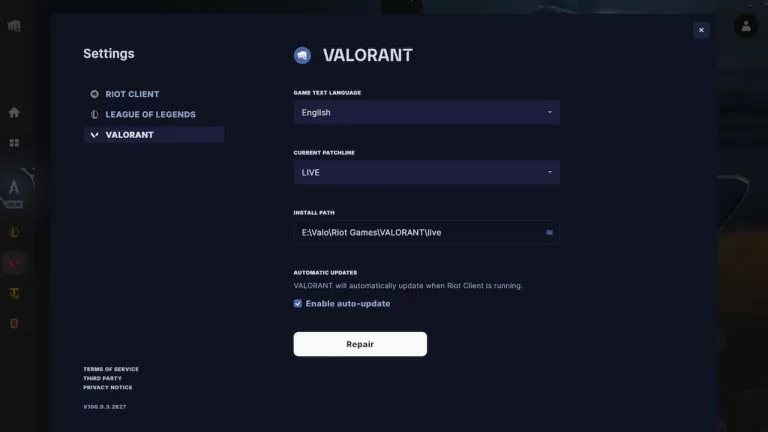
Follow the steps below to check the installed VALORANT files
- Open the Riot Games client
- Click on the profile icon in the top right corner
- Navigate to VALORANT
- Find and click the repair option
Doing this causes the client to scan all installed files and automatically fix or replace corrupted or missing files.
Players can also ensure the game has administrator privileges, as files sometimes incorrectly load without them. A lack of permissions may also mess with third-party software like stat trackers. To give the game permanent administrator rights, locate and right-click on VALORANT’s executable file and go to its properties. From there, open the compatibility tab, enable the “run this program as an administrator” toggle, and press “Apply”.
Troubleshoot the internet connection and switch to an SSD
Players may struggle to load into a match in VALORANT because of their internet instead of file-related problems. As an online game, VALORANT requires a constant and stable internet connection, and not having it could stop the free-to-play shooter from running properly.
There are a couple of ways players can troubleshoot their internet, including:
- Restarting the router
- Ensuring the internet works properly with other online games
- Using an Ethernet connection instead of Wi-Fi
- Playing on the server with the best ping
On the other hand, another player-related problem may be related to their storage device. An HDD is naturally slower than an SSD thanks to how both devices store data. Many players playing VALORANT on an HDD claim it takes them a while to load into a match, and they frequently load in after the first round’s preparation phase is over. Gamers should consider moving their files to an SSD if they have one, or getting one if they don’t.
Ensure Vanguard isn’t the problem
Players should try restarting Vanguard by restarting their PC. A restart knocks down two birds with one stone since a basic restart could fix VALORANT’s loading issue too. Vanguard can sometimes not boot properly, and it’s essential for VALORANT. Ensuring it’s working properly can potentially stop VALORANT from getting stuck on the loading screen.
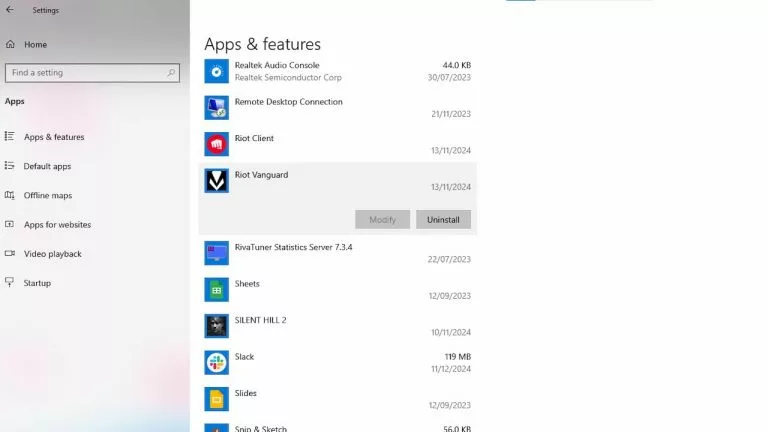
If that doesn’t work, try reinstalling Vanguard. Vanguard can get corrupted over time, so players may have to download it again. Uninstall and reinstall Vanguard by following the steps below:
- Navigate to Windows settings
- Go to the “Add or Remove Programs” option
- Find Vanguard and uninstall it
- Open the Riot client and navigate to VALORANT
- Press the “install” button to reinstall the anti-cheat.
Players must restart their PC after reinstalling the kernel-level anti-cheat to ensure the changes take effect.





Related Articles
All Valorant News Valorant
 Valorant
 Valorant
 Valorant
 Valorant
 Valorant
 Valorant
 Valorant
 Valorant
No comments yet











 Italy. Seria A. EA FC 25. (2x4 min)


 World Cup. EA FC 25. (2x4 min)


 ESEA Advanced Season 59 Europe


 Copa Libertadores. EA FC 25. (2x4 min)


 Champions League. EA FC 25 (2x4 min)






Leave a Comment
Join our community or access your account to post a comment.