


How to switch to left hand view model in CS2


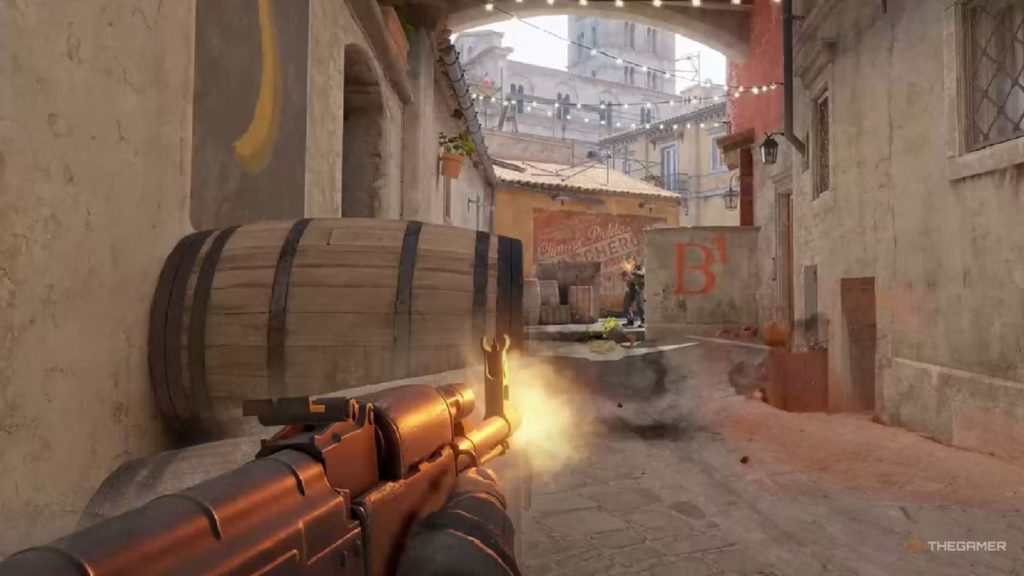
CS2 launched without the ability to swap gun models into the left hand, but Valve finally added the much-requested feature and it’s simpler than ever to activate.
In Counter-Strike 2, which hand holds the gun matters more than some players think. Players may find the movement feels unnatural if the gun is held in their non-dominant hand. The gun could also block a player’s vision when peeking certain angles. Valve is aware of these details, which is why the player’s POV could be toggled to the left or right side in CSGO using a command. However, CS2 was launched with the right hand as the default view, and there was no way to switch to the left-hand view. Later, Valve integrated the settings into the game menu to allow the left hand in CS2.
Enabling this option is much simpler now since complex console commands are no longer needed to switch view models.
How to enable left hand in CS2
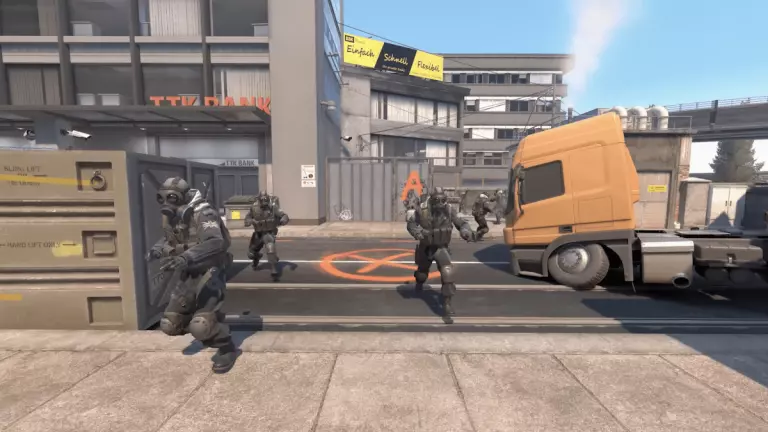
The left hand view model can now be activated through the CS2 settings menu, and here’s how to do it.
- Start CS2 and go to settings
- Go to the keyboard and mouse settings tab
- Under the Weapons Key option, find the option labeled Switch Viewmodel Left/Right
- Change the key to a desired button
The new setting also allows players to switch back to the right hand once this has been enabled. Using this setting, players can switch between two view models during gameplay. Assigning the key to H allows players to press H mid-game to toggle the view model between right-handed and left-handed views in CS2. If someone has a right-hand view by default, pressing H will switch it to the left-hand. Each time players switch, a short animation plays that prevents players from switching weapons mid-fight and gaining positional advantages.
Pro players who often switch view models mid-game generally use the toggle option. In addition, players who use just left hand in CS2 can set it as permanent POV from settings.
- Go to Settings and then click on Game
- Next, go to Item and scroll until to the Preferred hand viewing model option
- Click on it and select the preferred view
This is all players need to know about setting up left hand in CS2 as their main view model.



Related Articles
All CS2 News CS2
CS2 CS2
CS2 CS2
CS2 CS2
CS2 CS2
CS2
 CS2
CS2 CS2
CS2 CS2
CS2 CS2
CS2No comments yet











 Spain. LaLiga. EA FC 25. (2x4 min)


 Copa Libertadores. EA FC 25. (2x4 min)


 Champions League. EA FC 25 (2x4 min)


 England. Premier League. EA FC 25. (2x4 min)


 Brasileirao Serie A. EA FC 25. (2x4 min)







Leave a Comment
Join our community or access your account to post a comment.